
Every iOS, macOS, watchOS, and visionOS developer shares the same recurring nightmare: waking up to an alert stating that your Mac has less than 5 GB of disk space remaining. You haven't downloaded any games or movies—so where did your 512 GB SSD go? In 95% of cases, the culprit is Xcode DerivedData and build caches.
During active compilation, Xcode generates intermediate object files, precompiled headers, indexing symbol tables, and compiler module caches. Over months of building different branches and dependencies, these folders never self-prune. Here is how to reclaim 50 GB to 100 GB of developer disk space cleanly and safely.
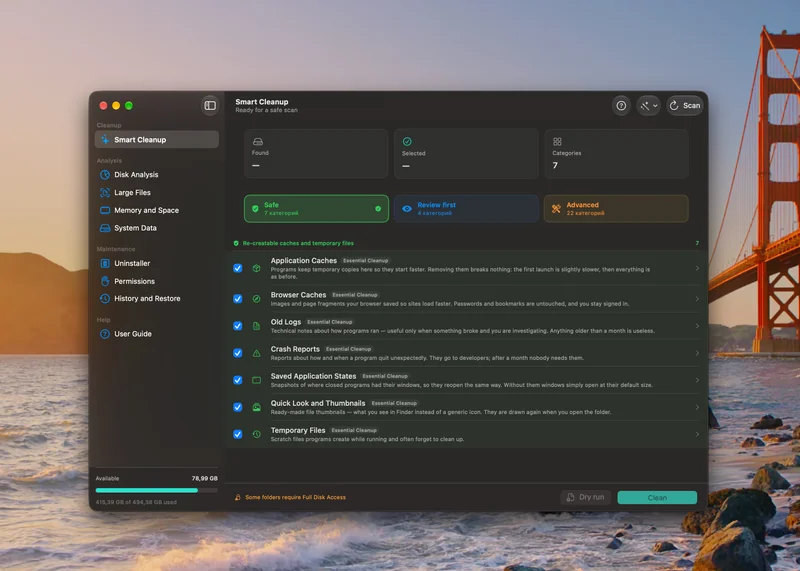
Where Xcode Hides Its Heavy Disk Caches
Xcode distributes its temporary build products and support files across five primary directories:
- DerivedData (
~/Library/Developer/Xcode/DerivedData): Intermediate object files, index databases, and build products. Consumes 20GB–60GB. - iOS DeviceSupport (
~/Library/Developer/Xcode/iOS DeviceSupport): Symbols from every physical iPhone or iPad you have ever plugged in. Consumes 5GB–15GB per iOS version. - Archives (
~/Library/Developer/Xcode/Archives): Old .xcarchive builds saved when creating production App Store releases. Can grow to 40GB+ over a year. - Swift Package Manager Cache (
~/Library/Caches/org.swift.swiftpm): Cloned git repositories and compiled checkout binaries for SPM dependencies. - XCTestDevices (
~/Library/Developer/XCTestDevices): Orphaned temporary simulator clones created during parallelized test runs.
Is It Safe to Delete DerivedData?
Yes, absolutely. DerivedData is 100% regenerable. The next time you open a project and press Cmd+B, Xcode will re-index your code and compile necessary object files. The only cost is a slightly longer initial build time on the first run.
Manual Deletion via Terminal vs. MagicMacCleaner
You can delete DerivedData manually by quitting Xcode and running: rm -rf ~/Library/Developer/Xcode/DerivedData/*. However, manual terminal deletion wipes all your projects at once—even the one you are working on right now.
MagicMacCleaner's dedicated Xcode Deep Clean module solves this by reading the modification date of each project subfolder. It allows you to keep active projects intact while purging dormant clients and legacy repositories with one click.
Mobile Developer Workflow: Free Up Storage on Physical Test iPhones
While clearing Xcode caches, simulator runtimes, and build containers frees vital space on your Mac, physical iOS test devices rapidly become clogged with test builds, crash artifacts, diagnostic screen recordings, and QA screenshots. Keeping your physical testing hardware lean is essential for rapid on-device debugging and reliable deployment.
- Clearly Smart Storage Cleaner: Compresses gigabyte-heavy bug report screen recordings, detects duplicate test media, and organizes cluttered contacts on development and personal iPhones.
- Swipe Photo Cleaner: Quickly review and purge hundreds of UI test screenshots and demo bursts with effortless swipe-to-delete gestures.
Apple Ecosystem Dev Tip: Test Device Optimization
Low storage on connected iOS devices can cause Xcode wireless deployment timeouts and LLDB debugging failures. Regular on-device media cleanup prevents cryptic build deployment errors.
